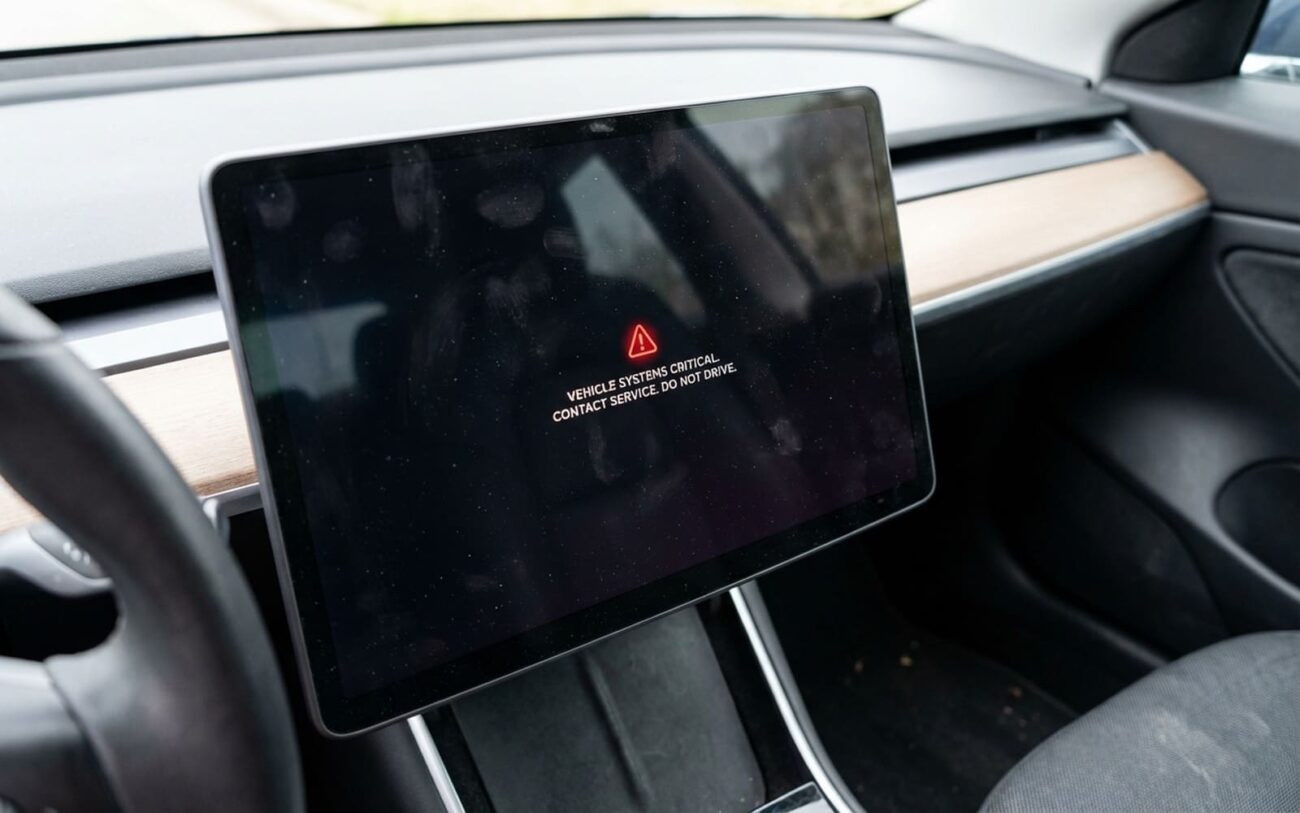
When your Tesla’s screen goes black and stays that way, you’re not just losing a display—you’re losing the nervous system of the car. I’ve pulled dozens of these units into my shop over the years, and let me tell you: what looks like a simple “dead screen” is often either a five-minute fix or a $2,500 repair. The difference? Knowing where to start.
What a Dead Screen Actually Means
On most Teslas post-2015, the center screen isn’t just for navigation—it’s your speedometer, gear indicator, turn signal confirmation, climate control, camera feed, and charge port access. Lose it, and you’re driving blind. No, seriously: there’s no backup instrument cluster on Model 3 or Y. You don’t even get a gear readout unless you’re already moving.
And don’t think you can just “drive it to the shop.” Try shifting out of Park without touching the screen. Good luck. Most drivers don’t know there’s a manual override—and even if they do, you’re still missing brake assist warnings, battery state, and rearview camera. That’s not inconvenient. That’s unsafe.
I’ve had customers roll in thinking their MCU died, only to find out their 12V battery was at 10.8 volts. Another time, a blown fuse in the front trunk junction block killed power to the entire infotainment rail. These aren’t rare edge cases—they’re the majority of what I see.
First: Rule Out the Obvious
Before you pull trim or order a new MCU, check the basics. I do this on every single one—no exceptions.
Start with the 12V battery. If voltage is below 11.5V, modules start dropping offline. Use a multimeter, not the car’s readout (which may already be corrupted). On older models, especially 2015–2017 S and X, the 12V battery tends to go south around year 5. Replace it every 3–5 years, no questions asked.
Next, check fuses. The front trunk (frunk) junction block has a 40-amp fuse labeled “CID” or “Infotainment.” If that’s blown, nothing downstream wakes up. I’ve seen rodents chew through the harness right behind the frunk liner—yes, really.
Then, listen. When you open the door, does the car make its usual chime? Do the seat belts motor? If those work, the Gateway ECU is likely alive. If not, you might have a deeper network issue.
Diagnosis: Is It the MCU or Something Else?
If the 12V system checks out, it’s time to get diagnostic. You need a tool that can talk to Tesla’s CAN network—something like Tesla Toolbox, T-Box, or a high-end Autel with Tesla module support. Generic OBD2 scanners won’t cut it.
Scan for active modules. If the Gateway ECU responds but the Center Information Display (CID) doesn’t, the MCU is likely dead. If nothing responds, you’ve got a power or Gateway issue upstream.
Another test: try shifting out of Park manually. On Model S/X, there’s a mechanical override under the center console trim. On Model 3/Y, you can apply 12V to the tow loop connector (pins 1 and 4, per service manual). If the car shifts, the drivetrain’s fine—the problem is interface-related.
Also check: does the glovebox open via the app? Can you flash the lights? If yes, the body controller is up. If no, you might be dealing with a broader network failure, not just the screen.
| Symptom | Likely in Named Component (Screen/MCU) | Common External Mimics | Definitive Test to Confirm Source |
|---|---|---|---|
| Black/unresponsive center screen. | MCU processor failure, eMMC memory corruption, or LCD/digitizer failure. | Faulty 12V power supply, blown fuse (e.g., in the front trunk junction block), Gateway ECU failure, or network communication breakdown. |
Use a professional-grade scan tool (such as Tesla Toolbox or equivalent) to check module communication. If the Gateway ECU is reachable but the CID is not responding, the MCU is likely at fault. If no modules communicate, investigate upstream power or Gateway issues first. |
| Vehicle will not shift from Park. | Driver cannot access on-screen shift control due to MCU failure. | Brake pedal position switch failure, transmission interlock mechanism fault, or high-voltage contactor issue. |
Engage the manual shift override. On Model S/X, use the mechanical cable under the center console trim. On Model 3/Y, apply 12V power to specified pins in the tow loop connector (as per service manual). If the car shifts, the problem is interface-related (MCU), not mechanical or electrical in the drivetrain. |
Now: What Actually Failed?
If diagnostics confirm the MCU is dead, the next question is: can it be fixed, or does it need replacing?
For pre-2018 Model S and X with MCUv1, the usual culprit is eMMC wear-out. That’s the soldered flash memory chip storing the OS. It’s got a finite number of write cycles, and after years of logging, updates, and reboots, it dies. Symptoms start small: slow boot, random reboots, frozen UI. Then, one day, nothing.
Tesla eventually acknowledged this and offered a free upgrade to MCUv2 (which uses better storage). If your car hasn’t had that done, it’s a ticking time bomb.
Other internal failures:
- SoC failure: The main processor gives up, often due to thermal stress. No power, no response—just a black screen.
- Voltage regulator failure: Tiny regulators on the board feed power to the SoC and memory. One fails, the whole unit’s dead.
- LCD or digitizer failure: The screen itself can go. Look for flickering, dim backlight, vertical lines, or touch that works but display doesn’t (or vice versa). Delamination—bubbles at the edges—is common on Model 3s after 3–4 years. Once touch fails, it’s game over.
Fix It: What Your Options Really Are
Professional Territory Only
Board-level repairs aren’t for DIYers. Replacing an eMMC chip on an MCUv1 requires a hot-air rework station, micro-soldering skills, and an ESD-safe bench. One slip, and you fry the board.
And even if you fix the hardware, you still need Tesla Toolbox to flash and provision the unit. That’s not public software. You’re locked out without dealer access or a licensed independent shop.
MCUv1 eMMC Chip Repair Professional Only
Complete MCU/Touchscreen Assembly Replacement DIY-Feasible with caution
Early Delamination (Temporary Fix) Temporary / Last-Resort
After the Repair: Did It Really Work?
Don’t just turn it on and drive away. I’ve seen too many come back with “it worked for a day.”
First, verify the screen boots every time—no hangs, no blackouts after sleep. Test touch across the whole surface. Check speed readout, gear, battery level, camera feed. Open the glovebox. Turn on the defroster. Try the charge port.
Then, scan again. Look for DTCs in the CID, IC, or Gateway modules. If you see “MCU not responding” or “authentication failed,” the unit wasn’t provisioned right. That’ll come back to bite you.
To Ensure Proper Validation
-
Verify the screen boots reliably every time. No hangs, no reboots, no black screens after wake-up.
-
Touch response should be immediate and accurate across the entire surface.
-
Check all displayed data: speed, gear, battery level, charge status, turn signals, camera feeds.
-
Confirm you can open the glovebox, adjust climate settings, control wipers, and operate the charge port.
-
Use a scan tool to verify network health. Confirm no communication faults with CID, IC, or Gateway modules.
Cost vs. Value: Is It Worth It?
Let’s be real: a full MCU replacement can cost $3,000. On a Model S with $18,000 market value, that’s 17%. Is it worth it?
For a well-maintained car with good battery health, yes. For a high-mileage vehicle with other issues, maybe not. I’ve had customers source used MCUs from salvage yards for $600, then pay $300 for provisioning. Risky? Yes. But sometimes it’s the only option.
Bottom line: if the rest of the car is solid, fixing the screen keeps it on the road. If not, you’re throwing good money after bad.
Prevention: What You Can Actually Do
You can’t stop eMMC wear if you’ve still got MCUv1. But you can delay the inevitable.
Replace the 12V battery every 3–5 years. A weak battery causes voltage sags that corrupt memory writes. I’ve seen this mimic eMMC failure more than once.
Watch for early signs: slow response, random reboots, frozen boot screen, lost driver profiles. If you’ve got those, plan for a repair.
And keep the software updated. Tesla pushes stability patches that reduce unnecessary writes. Won’t save a dying chip, but it helps.
