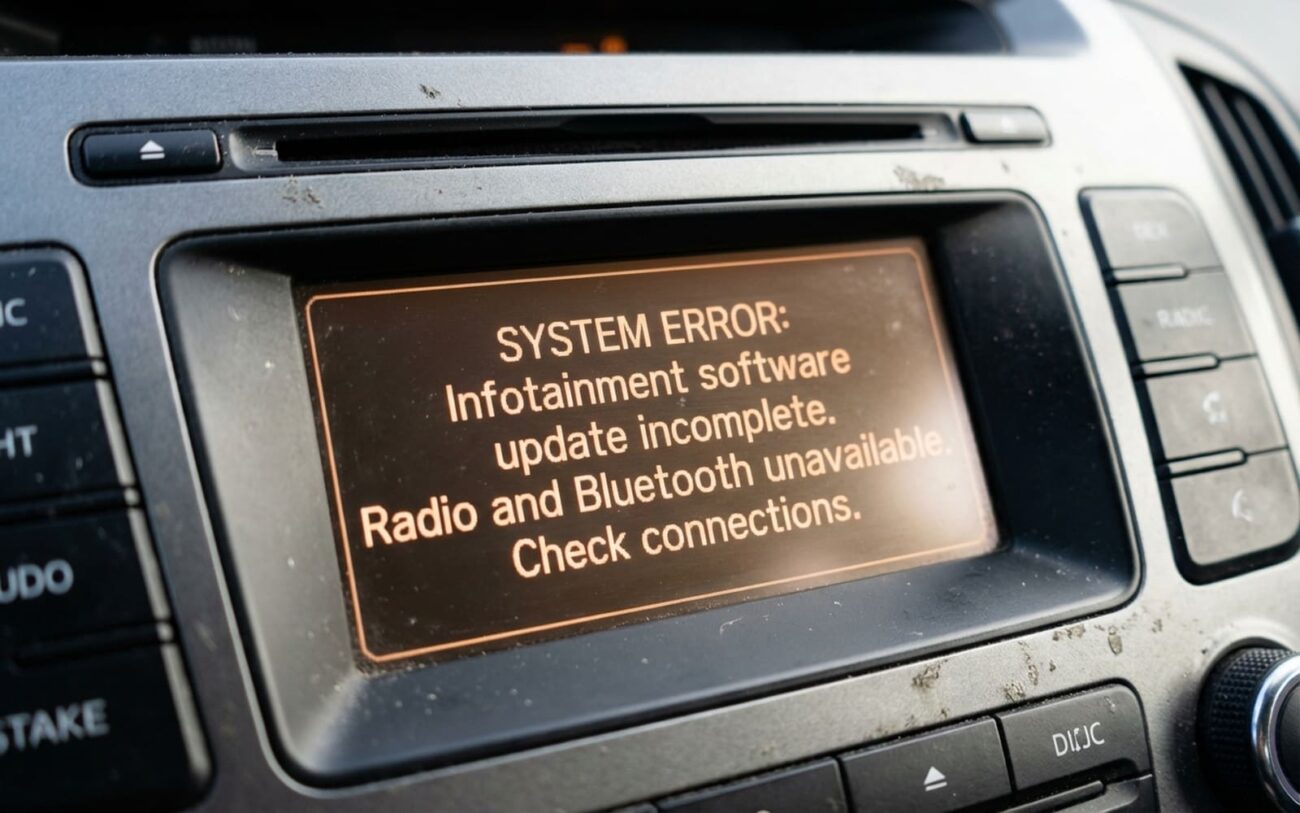
Alright, so you just wrapped up what should’ve been a routine software update on your infotainment system. But now, your radio icons – AM, FM, SiriusXM – are just gone. Poof. And Bluetooth? Won’t connect, won’t even show up. I’ve pulled dozens of these units off the bench over the years, and I can tell you, this is a textbook case of a corrupted or incomplete firmware update.
What Exactly Went Wrong?
The head unit – that’s the main computer behind your infotainment system – started installing new software, but something interrupted the process. Now, critical files that control the radio tuner and Bluetooth module either weren’t written correctly or didn’t install at all. It’s not that the hardware itself is broken. The system still boots up because the core operating layer is intact, but the specific software partitions responsible for those features are either missing or corrupted.
The Concept
Think of your car’s infotainment system like a library. The building is still standing, the lights are on, but the entire sections for “Music” and “Communication” books have been completely emptied. The system just “forgets” those functions ever existed.
Why These Updates Go Sideways (Usually)
So, what actually caused the interruption? In my 25+ years, I’ve tracked it down to a couple of main culprits. These firmware flashes aren’t simple downloads; they involve writing data directly to the head unit’s memory in a precise sequence. If anything disrupts that, you get partial or corrupted software.
Number one, hands down, is insufficient battery voltage. People try to flash an infotainment system like it’s a phone, but these things draw serious power. Even a brief dip during the 15–30 minute flash can corrupt the data stream. That’s why a proper 30-amp battery maintainer isn’t just a suggestion; it’s mandatory. I’ve seen more “failed updates” that were just weak batteries than anything else.
Another frequent issue is incorrect media or file handling. You need a USB drive that’s formatted to FAT32, and it needs to be clean – nothing but the firmware file on there. Using an old stick with leftover files, or one formatted wrong, can cause the system to read bad data and stop the update cold.
The manufacturers know this:
There are known service bulletins for certain model years that specifically address loss of SiriusXM and Bluetooth after a firmware update. This isn’t a mystery to the OEMs. And to be clear: this isn’t a broken antenna, a failed amplifier, or a wiring issue. The problem is contained within the infotainment system’s software state.
Confirming It’s Software, Not Hardware
Yes, this almost always traces back to the update. But before jumping into a reflash or reset, we gotta confirm the root cause. I’ve had customers come in convinced it’s software, only to find a failed communication module or a disconnected antenna harness. The symptoms can overlap, so we rule out hardware first.
For example, a failed Telematics Control Unit (TCU) or a break in a fiber-optic audio network can cause total audio loss, but they usually don’t make the icons disappear from the menu. The vanishing act—icons gone, functions missing—is a strong digital clue, not an analog one. Here’s my quick checklist:
| Symptom | Likely Culprit | Common Mimics | How I Confirm |
|---|---|---|---|
| Radio & Bluetooth vanish immediately after an update | Corrupted software partition or wrong firmware version. | 1. Failed TCU. 2. Broken antenna fiber-optic ring. |
Access the engineering menu (if available) to check for Software Download (SWDL) errors. |
| System boots normally, but features are absent | Specific software files (.bin) failed to install during update. | Internal hardware failure (e.g., dead tuner chip). |
Compare installed firmware version against OEM specs; check for “No Communication” DTCs with a scan tool. |
Getting Your Features Back: Your Options
Alright, so you’ve confirmed it’s a software problem. What now? You’ve got a few options, from an easy DIY attempt to a full replacement.
Forced Factory Reset Worth Trying First
Professional Reflash Recommended
If the head unit still powers on, a full reflash using OEM diagnostic software (GM SPS, Ford FDRS, etc.) is your best bet. This requires a J2534 pass-thru device and a stable 30-amp battery maintainer. This process reinstalls the correct, complete firmware and recalibrates the system. It’s got about an 85% success rate if done right.
Professional Software Reflash Best Option
Head Unit Replacement
How to Know It’s Actually Fixed
After any repair, thorough validation is critical. Don’t just check if the icons are back—you gotta test everything.
For a successful software reflash, all audio sources should be visible and selectable. You should be able to scan and save AM/FM stations, pair a new phone via Bluetooth, and stream audio without dropouts. Test calls, too. On some of the 2018-2020 GM trucks, I’ve seen the icons return but the voice commands still be dead. Test it all.
After a forced reset, the system should reboot fully and prompt you through initial setup—language, time, Bluetooth pairing. It should act like it just came off the factory line.
With a new head unit, verify that it powers on without error messages, recognizes your VIN, and enables all factory-equipped features like Apple CarPlay, Android Auto, or GPS navigation. Make sure the backup camera works, too – that’s a common one that gets missed if programming isn’t perfect.
Cost, Risk, and Making the Hard Decision
| Repair Type | DIY Cost | Shop Cost | Success Rate | Risk if It Fails |
|---|---|---|---|---|
| Forced Reset | $0 | $0 | ~15% | None. It either works or doesn’t. |
| Professional Reflash | High (Tools) | $100 – $300 | ~85% | A power drop during the flash can fully brick the unit. |
| Head Unit Replacement | $500 – $2k | $1.5k – $3k+ | >99% | Incorrect programming causes feature loss or total non-function. |
The decision often comes down to your car’s value. If a new OEM head unit costs more than 25% of your vehicle’s market value, consider a high-quality aftermarket alternative—like a Pioneer or Alpine unit. Modern aftermarket systems often offer better software stability and wireless Apple CarPlay/Android Auto, and can sometimes be installed for less than an OEM replacement.
How to Prevent This Next Time
-
Always use a battery maintainer: Connect a 30-amp unit before starting. Voltage stability is non-negotiable. Seriously, don’t skip this.
-
Use the correct USB drive: Format to FAT32 and ensure it’s empty except for the firmware file. No old music, no random documents.
-
Verify the firmware file: Download only from official sources and match your exact model year and region. A wrong file can brick it just as fast.
-
Test immediately after update: The moment the system reboots, check AM, FM, SiriusXM, and Bluetooth. If something’s off, you catch it early.
